Intro

GNOME is an excellent Desktop Environment for Linux Distributions if you’re a newbie or advanced user alike. It is both powerful and simple and doesn’t require much customization to work well out of the box which many people prefer. Rebinding some keybindings can be a bit difficult though. Let’s take a look!
Gnome Control Center
The common shortcuts can be found in gnome-control-center, also known as settings. Here you can find shortcuts regarding mostly navigation, but also media and screenshots, system (lock screen, log out…) and some of the windows management settings.
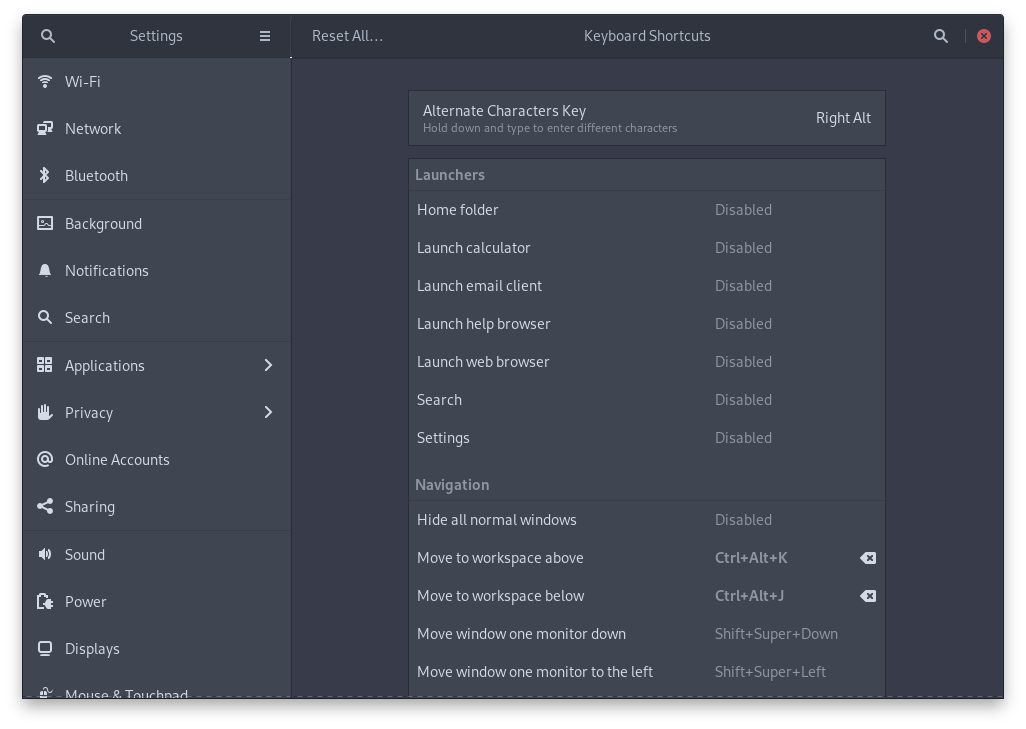
Clikcing on an entry allows you to change the default shortcut for it. Pressing escape takes you back, you can always go back to the default whenever you want. For this tutorial I’m changing the default workspace arrow movement to vim’s hjkl movement.
Custom Shortcuts
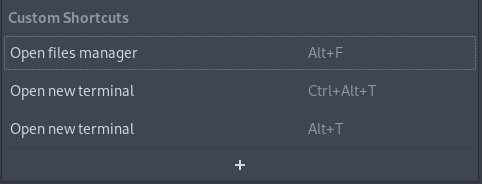
In gnome control center you can also set custom shortcuts. There are keyboard shortcuts for starting applications as if using the command line. This is simalar to the GNOME’s Alt+F2 run a command window.
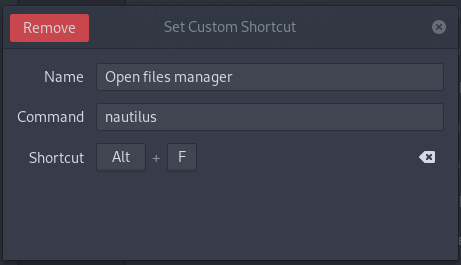
For example to bind Alt+F to open file manager you click on the plus button and set the name (description) of the shortcut, the command and the shortcut. Nautilusis the default files manager for GNOME.
Similarly, you can set up a shortcut for opening a new terminal, often binded to Ctrl+Alt+T, use gnome-terminal command for the GNOME’s default one or the any other that you are using.
Advanced shortcuts in dconf-editor or via gsettings
Most shortcuts can be set in gnome control center but for some that are too advanced you have to venture more deep.
gsettings is a command line configuration tool for GNOME and other things. It can do much more than set shortcuts, but that isn’t covered here.
For example, to get all the settings relevent to gnome’s shell, you can write:
$ gsettings list-recursively org.gnome.shell.keybindingsTo get a shortcut for toggling message tray (default: Super+V or Super+M) type:
$ gsettings get org.gnome.shell.keybindings toggle-message-trayTo set it to Ctrl+Alt+M, you would type
$ gsettings set org.gnome.shell.keybindings toggle-message-tray "['<Primary><Alt>M']"You can see that this is not intuitive at all. That’s where dconf-editor comes in. It is a graphical tool for dconf and gsettings. dconf is a configuration storage system with which gsettings interacts. The terms here aren’t that important though.
dconf-editor simplifies lots of advanced settings manipulation, and isn’t limited to shortcuts at all. We will look how to edit shortcuts here.
While you will have gsettings installed and ready to use, you need to install dconf-editor using your distribution’s package manager. For example on Fedora that is sudo dnf install dconf-editor.
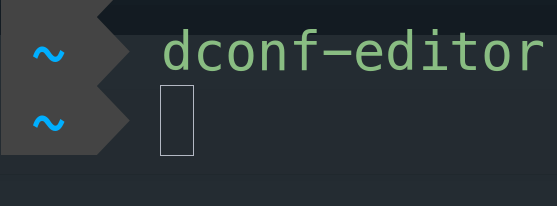
You can launch dconf-editor using via GUI or CLI alike. Find the application in your application list or type dconf-editor in the command line.
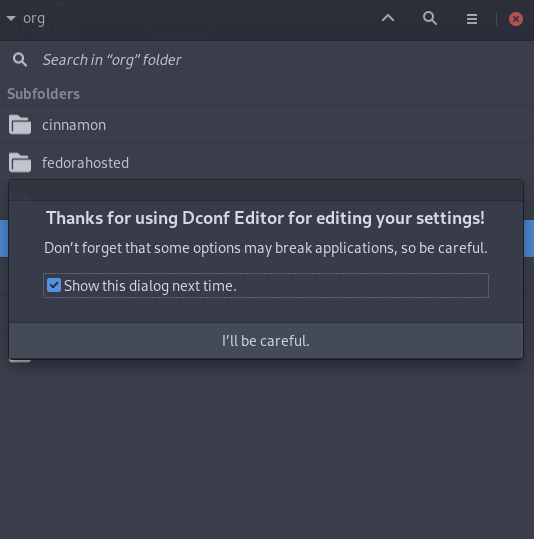
When launched, you’ll be greeted with this omnious saying. It is a powerful tool that should be used wisely. But if you know what you’re doing, go ahead!
To find all the keybindings that you can change, just type keybindings into the search field in the root directory.
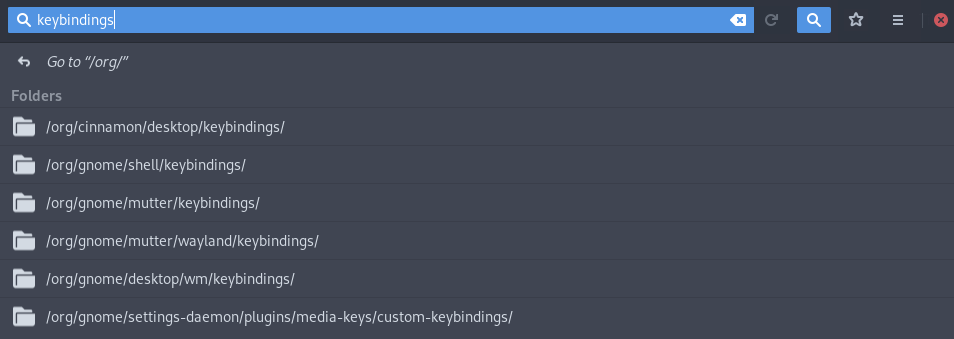
The most interesting settings are in my opinion the window manager (/desktop/wm) and gnome shell settings. Feel free to explore, there may be more depending on application you’ve got installed.
For example to change some of the wm’s more obscure setting “Move a window to top right corner” you locate the setting using the path /org/gnome/desktop/wm/keybindings/ and set its value accordingly.
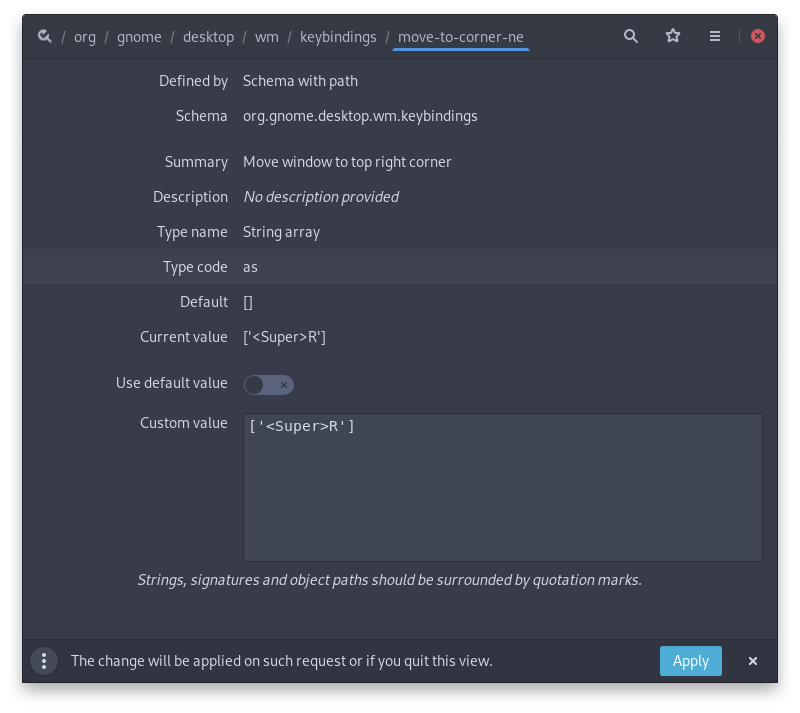
You can see that the custom value has got the same structure like using gsettings in the terminal. Tick the Use default value off and click apply. You can now enjoy your new shortcut! 😊
Conclusion
Setting shortcuts or keybindings in GNOME is fairly easy for most common things but can get trickier if you want more control. For those that want even more and dconf-editor doesn’t cut it, I would advise you to browse through the extensions or write your own scripts!
If you want to take one thing out of this post, use the custom shortcuts and bind everything you’re accessing often! (e.g. file manager, terminal, browser, IDE…)
It really makes the difference! 😊