Why?

I’ve been using Microsoft’s Visual Studio Code for a long time now. After starting out with notepad++ a few years ago and slowly transitioning to editors like Brackets and Atom. VSCode did stick with me the most.
But after diving my head into Linux for a year now the terminal really stands out for me. And over time I started wondering if I should use Vim as my main code editor instead of just using it to edit configuration files on Linux.
The Red Hat System Administration course, Unix philosophy of modular components that together can accomplish the work of an IDE and having a powerful editing tool right inside my terminal all gave me the final push that I needed to finally make the decision.
Vimtutor
It started with vimtutor. What is it you ask? It’s a tutor program made by the creators of vim. You can invoke it in your shell by typing:
$ vimtutor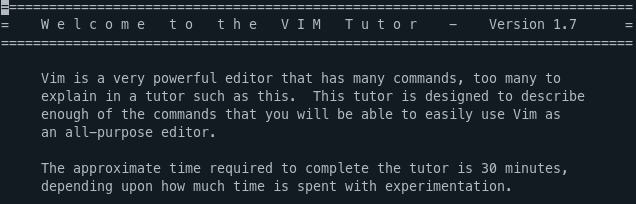
It takes 30 minutes or more depending on how much time you spend fiddling around with the commands. It’s been a really fun way to start the journey. It teaches all the basics (insertion, deletion, text navigation) but leaves much to be desired.
What next?

From there I started playing with my project using the Vim extension for VSCode. The extension isn’t bad and probably a lot of people can stop right here, but it doesn’t feel like vim at all in my opinion.
So I ran vim natively without any plugins yet. It was tedious at first and navigating to other files in the working directory wasn’t as intuitive but I really started enjoying the vim word navigation for real and forgot about my mouse.
I had to make some tweaks to the vim configuration file “~/.vimrc” along the way, e.g. tab width, temporary files location, number indices… Learned to save my file with :w instead of ctrl+s and to open files with :e, finding a word with / command felt really great.
From vim to nvim

A friend of mine told me about neovim. Apparently it should be a collaborator-driven fork of vim with 30% less code. So before venturing into the world of vim plugins I decided to switch to neovim. The transition was rather smooth. Adding these line of codes to my nvim configuration file allowed me to keep the config from ~/.vimrc
set runtimepath^=~/.vim runtimepath+=~/.vim/after
let &packpath = &runtimepath
source ~/.vimrc
Adding alias to my shell config and voila, calling vim will now launch neovim.
alias vim='nvim'Plugins
If you are using vim for any considerable amount of time you will find the limitation of the editor. Be it a graphical outlook or integrating git changes. That is where vim plugins come in. But first, you need a vim plugin manager to use it. Installing plugins manually feels tedious to me.
There are plenty of plugin managers but the junegunn/vim-plug really speaks to me. After a quick installation, you install plugins by placing the vim-plug section into your ~/.vimrc
Example:
call plug#begin('~/.vim/plugged')

Plug 'airblade/vim-gitgutter'
Plug 'vim-airline/vim-airline'

call plug#end()
You place your plugins between plug#begin() and plug#end(). Either provide the GitHub link or local path to the plugin. After reloading .vimrc you need to call :PlugInstall in vim for installation to complete. You are now using any plugins you want.
The ones I found useful are:
- vim-polyglot
- vim-autoclose
- vim-gitgutter
- nerdcommenter
- vim-airline
- vim-surround
- nerdtree
- vim-startify
- material.vim
For example, material.vim helped me take the VSCode’s material design with me to vim. vim-gitgutter is a need when working with git and the nerdcommenter simplifies the commenting of code in vim.
Conclusion
One week after making the transition I still miss some VSCode features. Commenting code isn’t as easy. Browsing the working tree for files isn’t as intuitive. Searching the whole project for certain keywords relies on using grep or other similar commands.
BUT I am glad I made the transition. It helped me to see editing code in a whole new light. Using hjkl and w/e/b to navigate feels great. No more relying on a mouse cursor to point at the right spot!
I encourage everyone to at least try the vimtutor, it won’t take long and it will give you a new outlook if nothing more. 😊